Rinkhals UI
Rinkhals includes a touch UI you can access from the Settings (gear icon) > Rinkhals.
During startup, Rinkhals replaces the Support option in the menu by the Rinkhals option (so you don't contact Anycubic support for something about Rinkhals).
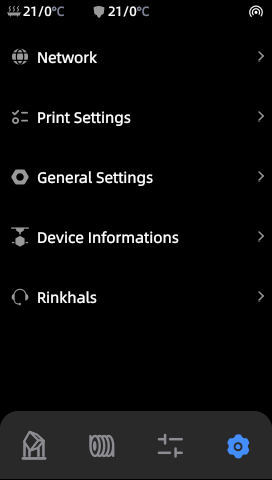
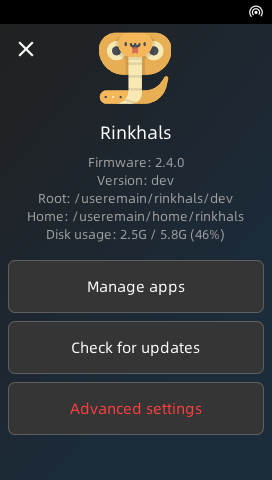
App management
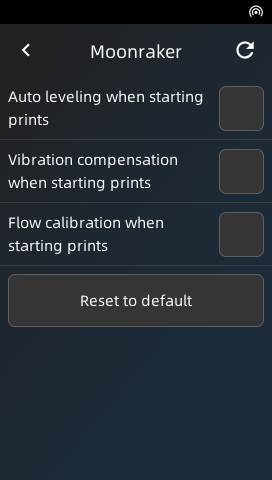
From this view you can access the list of installed apps. By tapping the checkbox you can quickly enable & start or disable & stop apps.
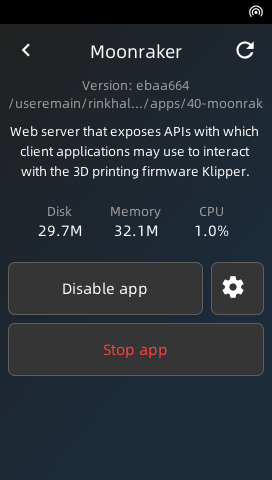
By tapping the app name you will enter the app details view where you can individually Enable/Disable, Start/Stop, access the settings if the app exposes some, and access a QR code if the app requires some actions from the user (to login for example).
Updates
Note
This part will soon be replaced by the Installer update experience
Advanced
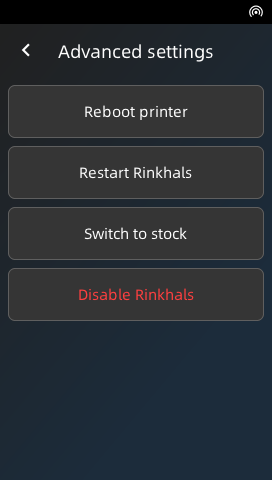
- Reboot printer: Reboot the printer (
sync && reboot) - Restart Rinkhals: Soft reboot for Rinkhals. Will restart the currently running version of Rinkhals.
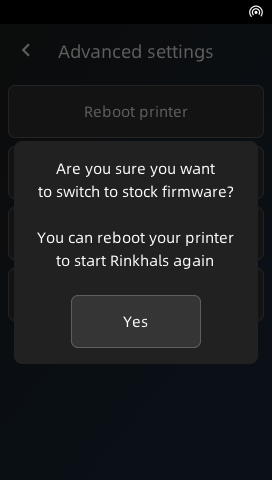
- Switch to stock: Stops Rinkhals, making the printer switch to stock firmware. On the next reboot, the printer will reboot back to Rinkhals.
- Disable Rinkhals: Disables Rinkhals and reboot to stock firmware. Rinkhals is now disabled and will need to be reinstalled and re-enabled to start again.